

For information on creating Plans with AI, managing Plans, and publishing, see Plans (PRDs).
Accessing the Editor
To edit a Plan in the rich text editor:1
Navigate to a Plan
Click Plans in the sidebar and select a Plan from the list.
2
Switch to Document View
Click the view toggle in the Plan header and select Document view.
3
Start Editing
The Plan opens in the rich text editor. Click anywhere to start typing or use slash commands.
Editor Features
The Plan editor includes:- Rich Text Formatting - Headings, paragraphs, lists, bold, italic, and more
- Code Blocks - Syntax-highlighted code snippets
- Media Embeds - Images and YouTube videos
- Project References - Embed links to code, issues, PRs, and other project data
- Auto-Save - Changes save automatically as you type
- Visual/Markdown Toggle - Switch between visual editor and markdown editing
- Widgets Sidebar - Drag and drop widgets into your document
- Source Attribution - View AI generation sources for generated Plans
Slash Commands
Type/ anywhere in the editor to open the command menu. Start typing to filter commands by name or keywords.
Basic Blocks
Media
Project References (Widgets)
These commands embed references to your project data. When you use a widget command, a selector dialog opens to search and select the item to embed. Issue Trackers & Dev Tools:
Code & Design:
Communication:
Documentation:
Product Intelligence:
Formatting
Alignment
Structure
Using Project Reference Widgets
Project reference widgets create rich embeds that display live information from your connected services. Here’s how to use the most common widgets:GitHub Issues and PRs
Use/github-issue or /pr to embed GitHub references:
- Issues display title, state, labels, and assignees
- Pull Requests display title, state, reviewers, and merge status
- Both include repository context and direct links
Code Samples
Use/code-sample to embed code snippets with full context:
1
Type /code-sample
The code file selector opens.
2
Select Repository
Choose from your indexed repositories.
3
Navigate to File
Browse the file tree or search to find the code.
4
Select Lines (Optional)
Optionally select specific line ranges to embed.
5
Insert
The code snippet is embedded with file path, line numbers, and syntax highlighting.
Product Goals and Decisions
Use/goal and /decision to embed product intelligence:
- Goals show progress percentage, status, and target dates
- Decisions show outcome, rationale, and decision maker
- Both link to the full record for more details
Status Updates
Use/update to embed product status digests:
- Shows period covered and executive summary
- Displays accomplishment counts and risk indicators
- Links back to the full status update
AI Insights
Use/insight to embed AI-generated observations:
- Shows severity level (info, warning, critical)
- Displays category and confidence score
- Includes suggested actions when available
Editor Controls
Visual vs Markdown Mode
Toggle between visual and markdown editing:1
Open Mode Selector
Click the Visual Editor / Markdown toggle above the editor.
2
Switch Modes
- Visual Editor - WYSIWYG editing with formatting toolbar
- Markdown - Edit raw markdown with preview
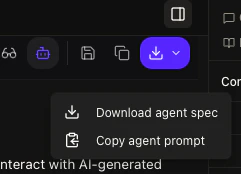
Agent-spec export
Any plan can be exported as an AI-agent-ready spec:- Full spec — markdown document with dependency-ordered work, acceptance criteria, and code references. Ready for a coding agent to execute.
- Agent prompt — a condensed clipboard-ready version for dropping into Cursor, Claude Code, or Copilot.
Closing the plan-to-code loop
Most product tools forget plans once they’re handed off. Kasava keeps watching:- When exported code files change, the plan’s status updates.
- When referenced code sits untouched for weeks, staleness escalates (fresh → recent → aging → stale → abandoned).
- When a plan is marked stale, you get a prompt to either archive it, refresh it, or generate an updated breakdown.
Widgets Sidebar
Access additional widgets and an AI chat assistant via the sidebar:1
Open Sidebar
Click Show Widgets button above the editor.
2
Choose a Tab
The sidebar has two main tabs:
- Chat - AI assistant to help write and refine content
- Insert - Browse and insert widgets by category
3
Browse Insert Categories
In the Insert tab, widgets are organized into categories:
- Bugs - Bug reports from your tracker
- Issues - GitHub issues from connected repositories
- Code - Code samples and snippets
- Proto - Figma designs, V0 prototypes, and AI Builder prototypes
- Design - Import Figma files (requires Figma integration)
4
Insert Widget
Click a widget to insert it at your cursor position, or drag and drop it into the document.
Chat Assistant
The Chat tab in the widget sidebar provides an AI assistant:- Ask questions about your Plan content
- Get help writing sections
- Request revisions or improvements
- Generate content suggestions
Source Attribution
For AI-generated Plans, view the sources used during generation:1
Open Sources Panel
Click Show Sources button (appears for AI-generated Plans).
2
Review Sources
The sidebar displays:
- Bug reports analyzed
- Issues and PRs referenced
- Code files examined
- Other context used in generation
Saving Changes
Changes save automatically as you type. You can also:- The editor shows “Saving…” when syncing changes
- A confirmation appears when save completes
- Switch back to Structured view to see your changes reflected
Best Practices
Keyboard Shortcuts
Related
Plans (PRDs)
Create, manage, and publish Plans
Implementations
Convert Plans to actionable work items
Products
Link Plans to Products
Integrations
Connect GitHub, Linear, Jira, and more